

3. Sorting
This Excel 2013 course covers the sorting of data.
The file Klanten is used for this lesson.
Here you can download the file Customers download.
The file can then be saved on your own computer. For example in "My Documents".
Via the File tab and then the Open button, you can open the file Klanten that you have just saved.
The file opens in Excel 2013.
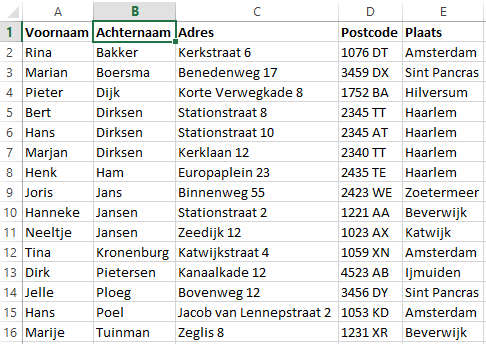
Figure 3.1 The Customers file
Sorting
Quick sorting
Go to the Data tab.
Figure 3.2 The Data tab

With the buttons 
 you can quickly sort by the column you are in
Sorting in ascending and descending order
- You sort in ascending order from A to Z with
- You sort in descending order from Z to A with
Make sure your cell pointer is in the customer list.
You can do this by clicking on "A1".
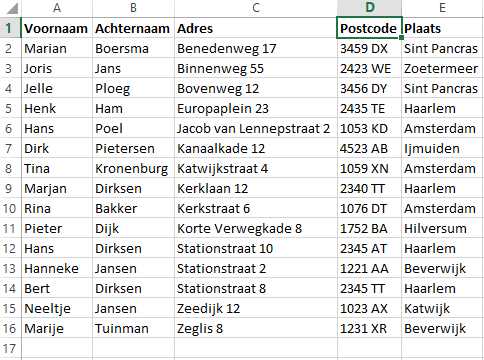
Sort the list by First name by clicking on to click.
Figure 3.3 Sorted by First name
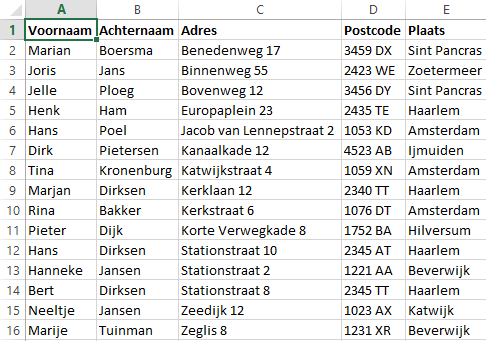
Sort by surname by placing your cell pointer on B1.
Figure 3.4 Sorted by Surname
Advanced sorting
In some situations it can be useful to sort on several columns.
In this list there are several people with the same surname.
It would be useful to sort by surname first and, where this is the same, to look at the first name.
Make sure your cell pointer is in the customer list.
Click the Sort button:

Figure 3.5 Advanced sorting
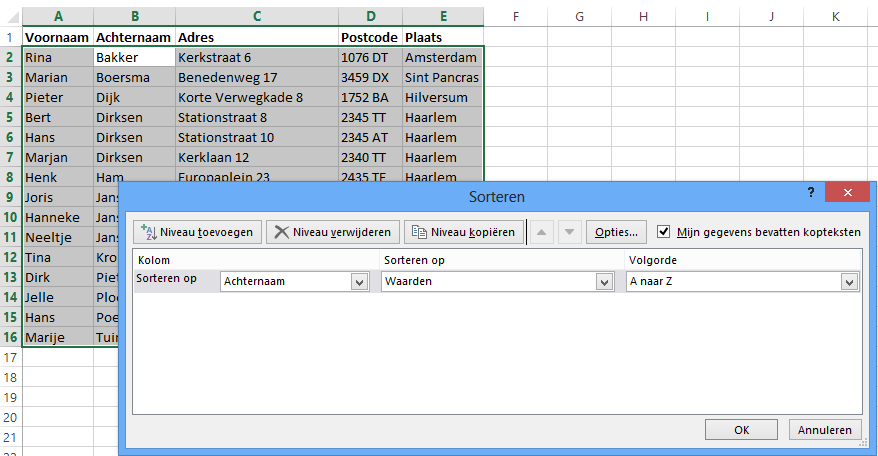
Click the Add Level button 
Complete the screen as in the example below:
Figure 3.6 The Sort window
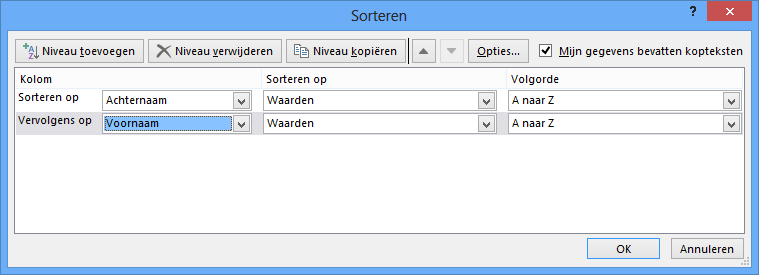
Then click OK
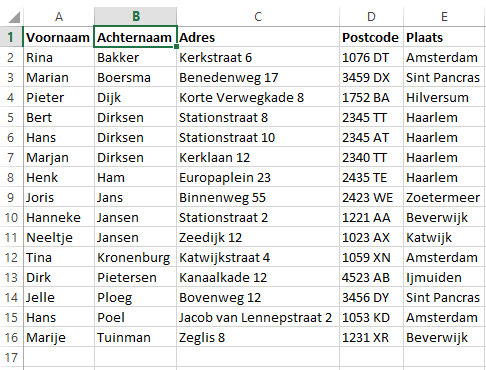
The Result
Figure 3.7 Sorting by Surname and First name