


9. Positioning elements
Positioning the various elements can sometimes be quite a challenge. Once you have fully mastered the positioning of the various elements, you are well on your way to building websites. The exercise below covers a number of important techniques.
9.1 Aligning an image within the text
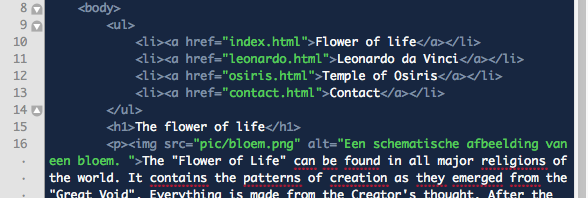
To move the image from below the text to the right of the text, we need to make two changes. In the HTML file, move the <img> tag from below the paragraph to before (above) the text, but still within the <p> tag.
And then we add an extra line at the bottom of the CSS file, see image.
The HTML code
The CSS code

9.2 Positioning the whole
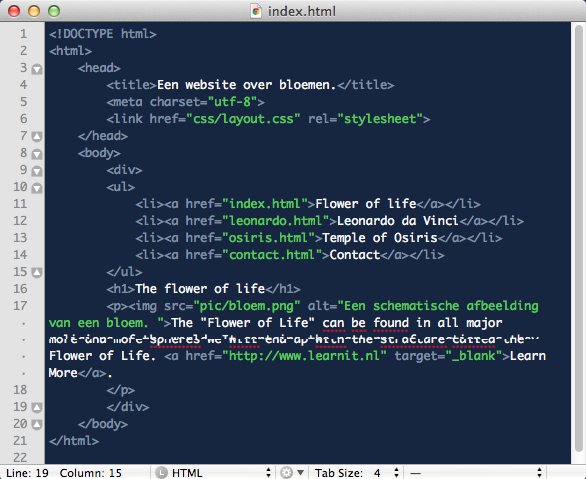
To present the overall content better, a new HTML element is placed in the body in the code below. This new HTML container is called div (a div stands for division (area)). By placing a div directly after the body opening tag and then closing it just before the body closing tag, we have now put all the content in a new container. We can position and style this new container using the CSS stylesheet. You can copy the code below for a better result.
The HTML code - An extra div container has been placed around the content here.
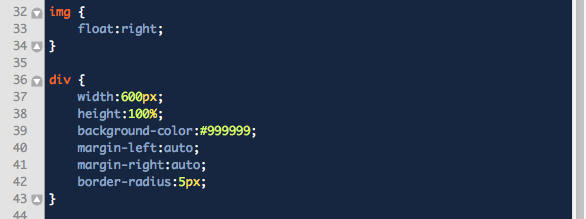
The CSS code - The div is positioned and styled.
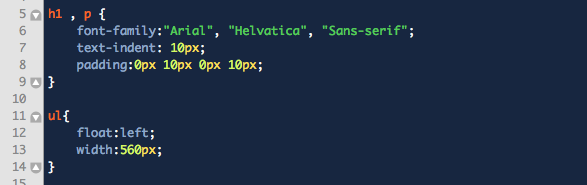
More CSS code - An addition to the paragraph and an extra selector for the ul
The end result will then look like this
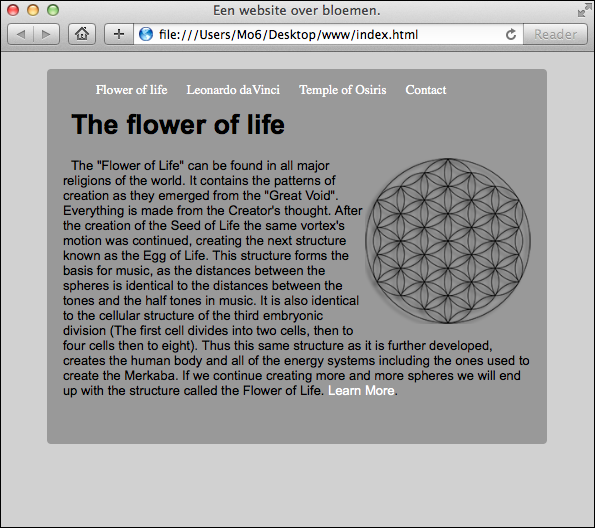
By giving the div a width, a height and a colour in the stylesheet, it becomes visible in the browser. If you then set the left and right margins to automatic, the div container will be centred on the page. Finally, the div is given the border-radius property. This property gives the div "rounded corners".
To ensure that the text is not placed directly against the edge, you add the padding property to the h1 and the p. The four values stand, in order, for the North, East, South and West side of the text.
The ul has the float property so that it can be positioned more easily at the top of the div. By specifying a width of 560 pixels, the ul takes up the full width of the div.
Tip: if you give the ul a temporary background colour, it becomes visible and you can position it more easily.